How to Import Virtual Machines Configured in VirtualBox to VMs?
Since VMs and VirtualBox applications cannot be used simultaneously, how do you transfer virtual machines to the VMs application when you have already installed VirtualBox and configured virtual machines?
Applicable Version
TOS 7 and above
Export Virtual Machine
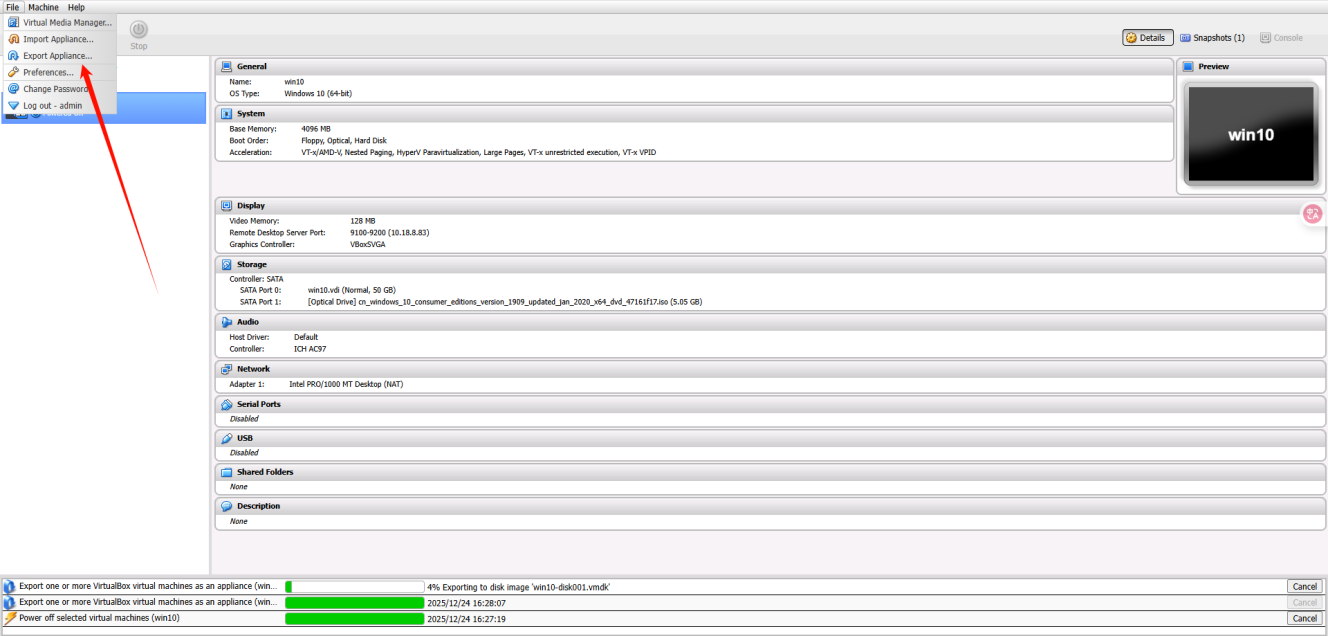
- In the VirtualBox application, click "File" in the upper left corner, and select "Export Virtual Appliance" in the pop-up window.
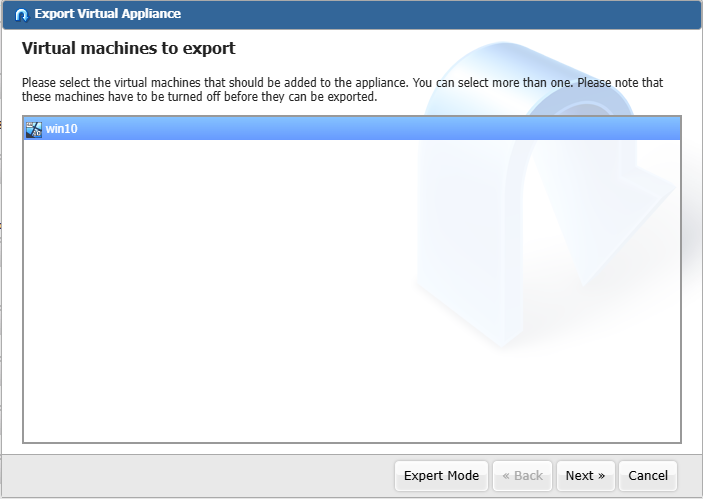
- Select the virtual machine you want to export.
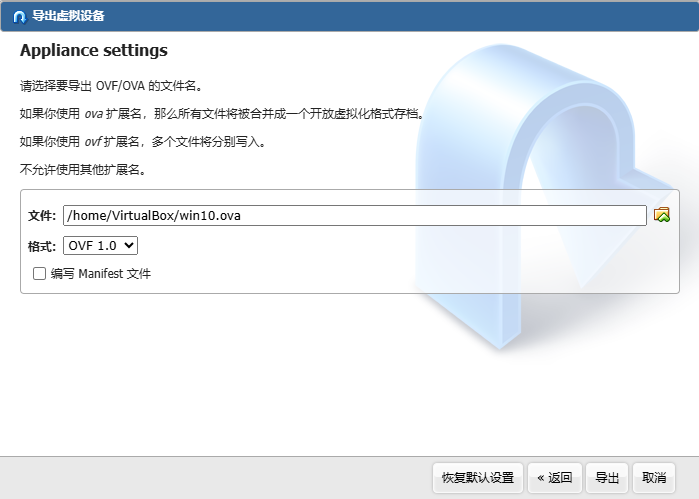
- Set the destination and file name for the virtual machine image file, and select the export format (OVF 0.9/1.0/2.0).
Note: When setting the storage directory, please choose a folder that is easy to access, so that you can locate the virtual machine disk image file when importing to the VMs application.
- Configure the description information for the virtual machine.
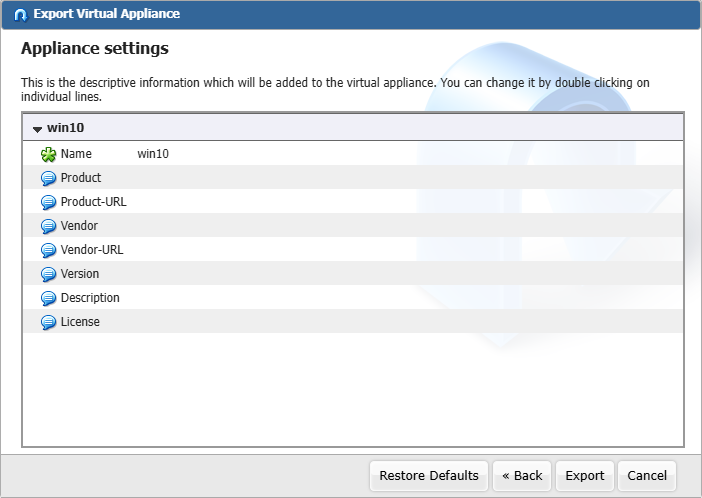
- After confirming that the information is correct, click the "Export" button.
After the virtual machine export progress bar completes loading, you can uninstall the VirtualBox application and install the VMs application.
Import Virtual Machine Disk Image File to VMs Application
- After installing the VMs application, click "Virtual Machines" in the left sidebar.
- Select the "Import" button in the upper left corner.
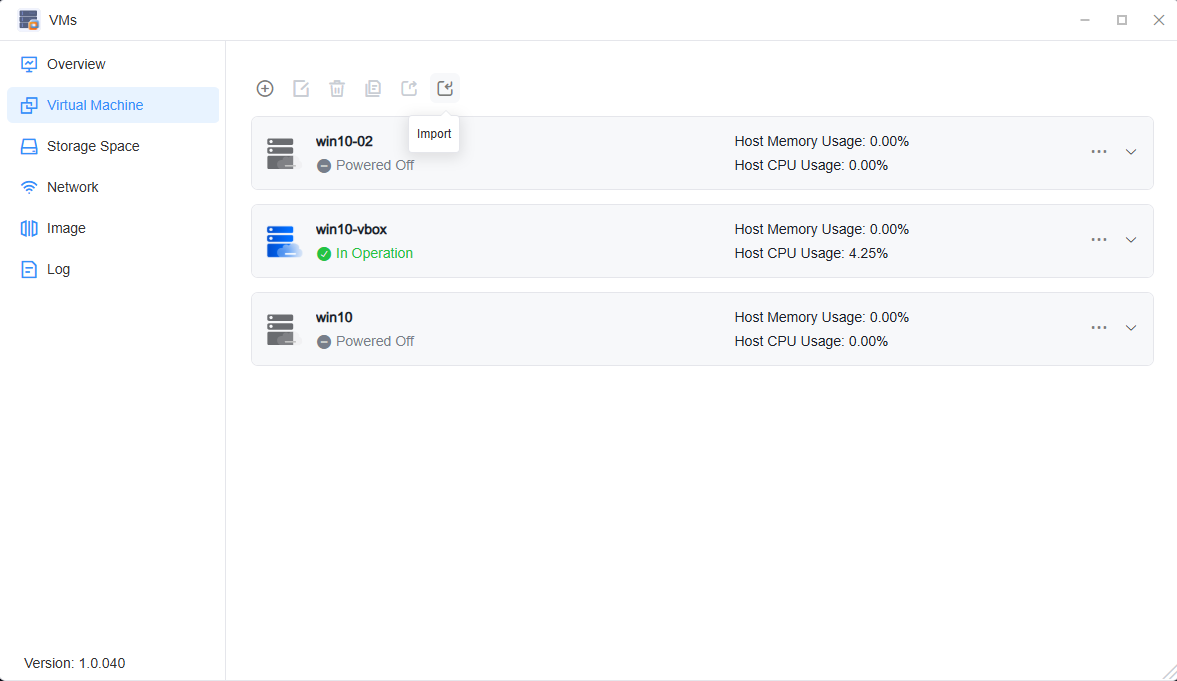
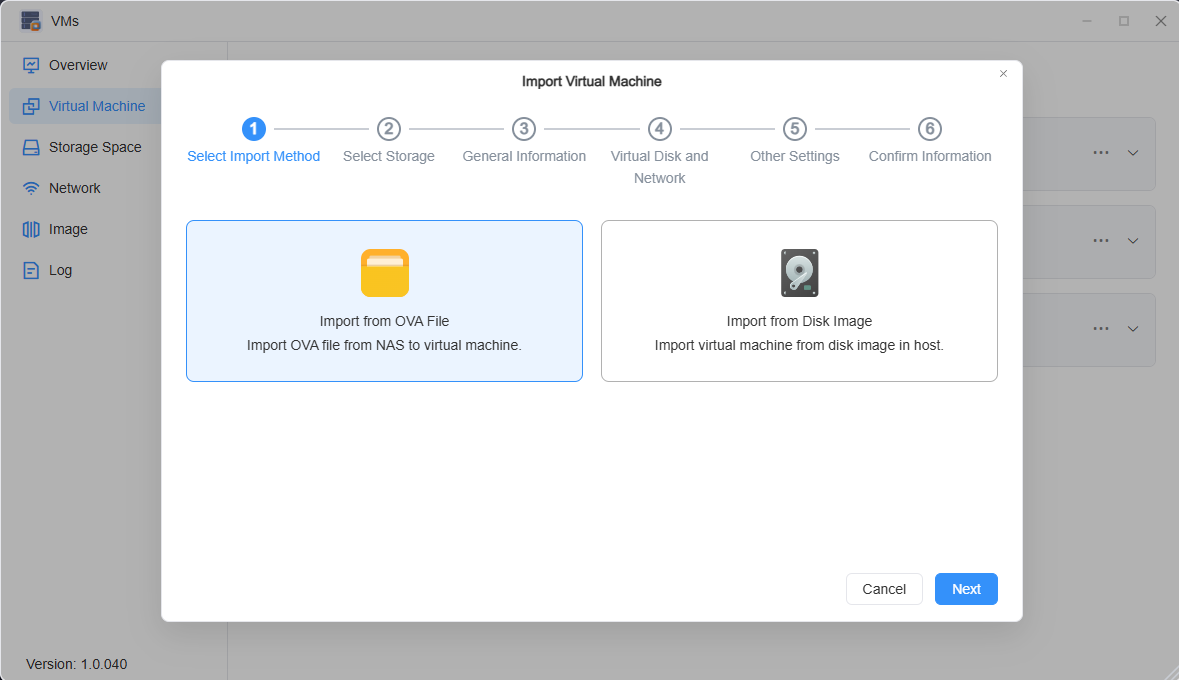
- Click "Import from OVA file" and select the virtual machine disk image file you want to import.
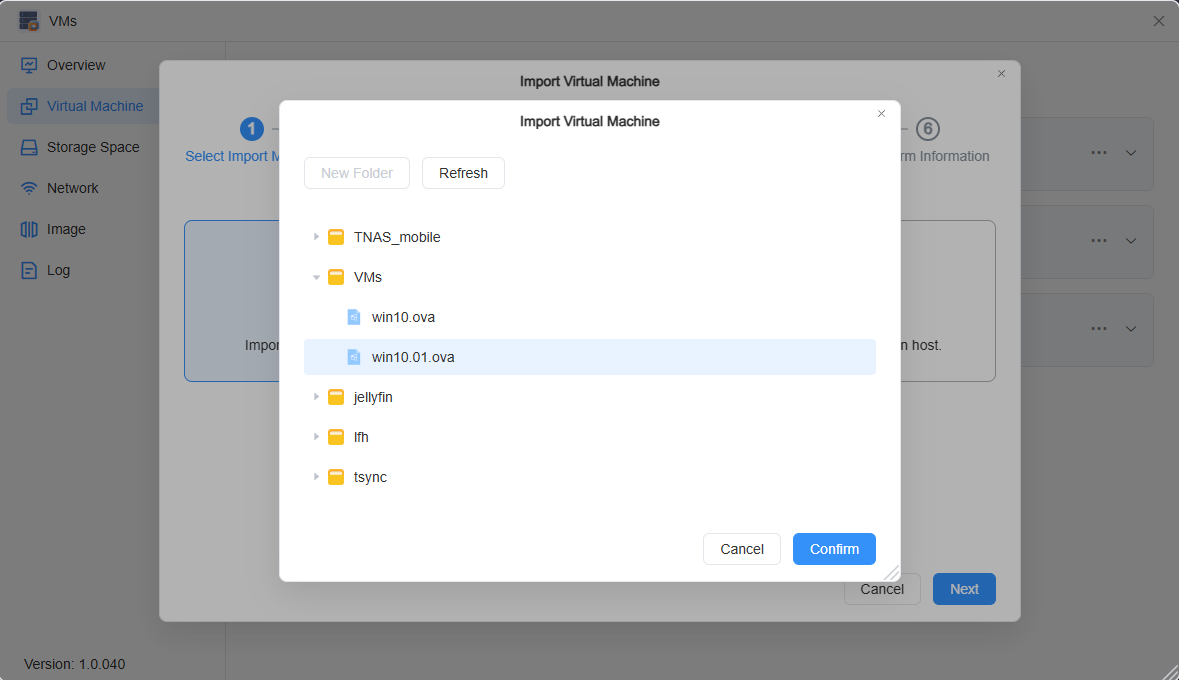
- Follow the on-screen steps to select the virtual machine storage space.
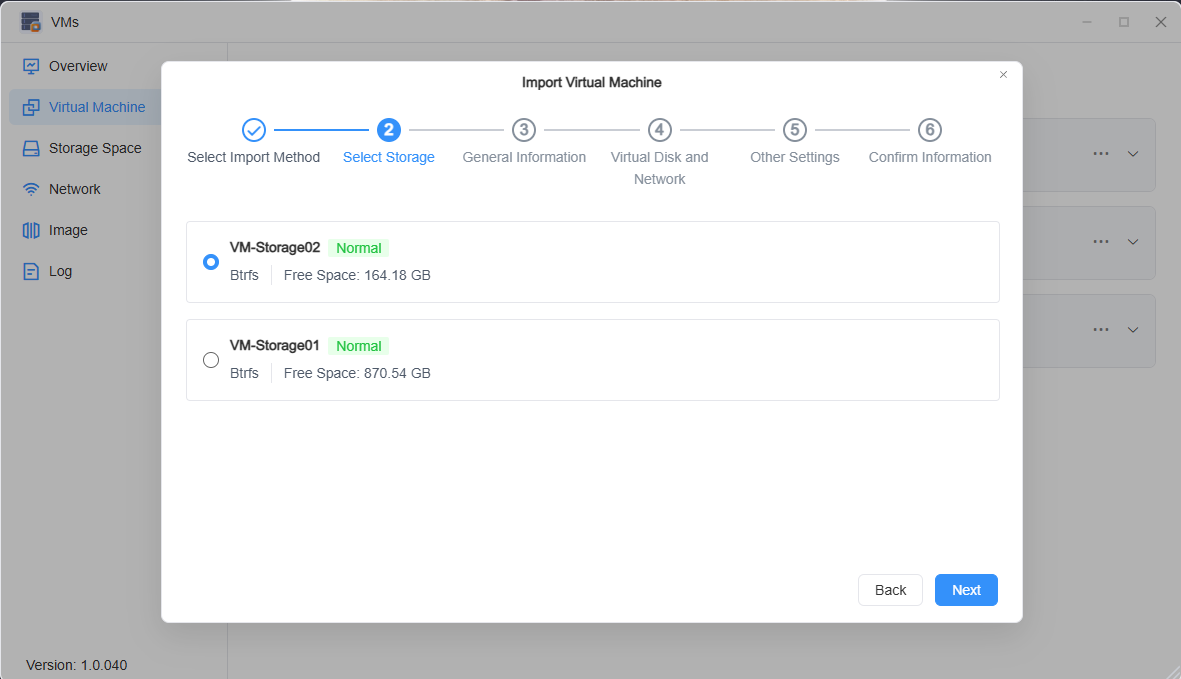
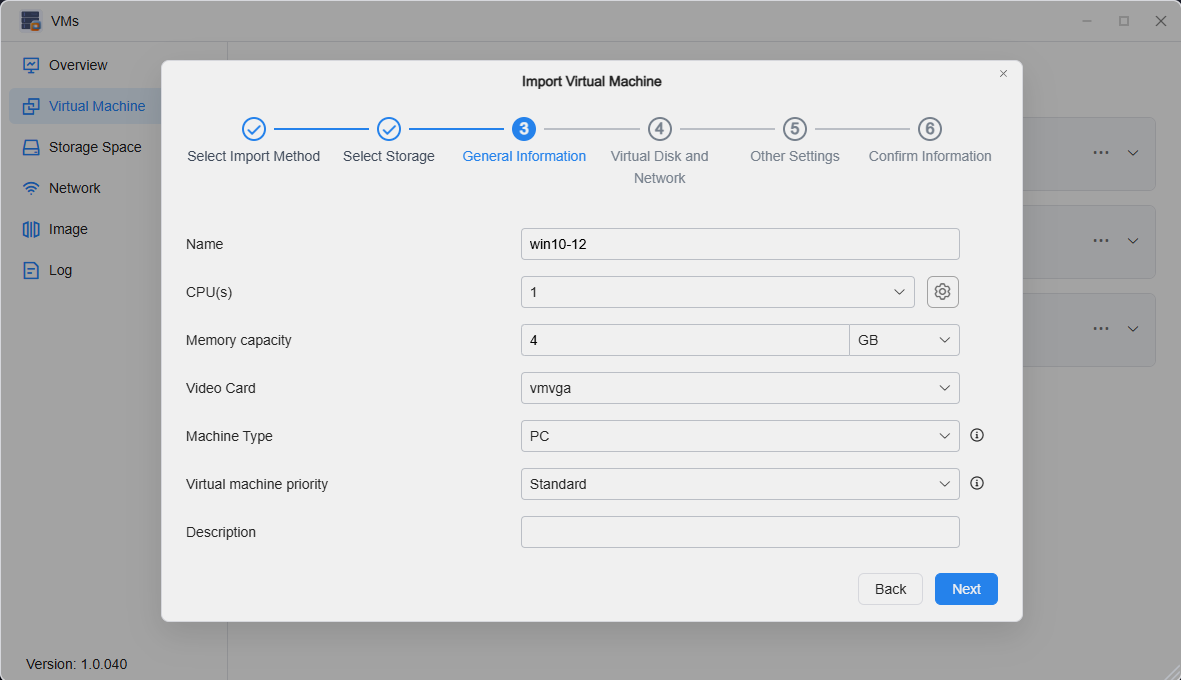
- Configure the basic virtual machine information.
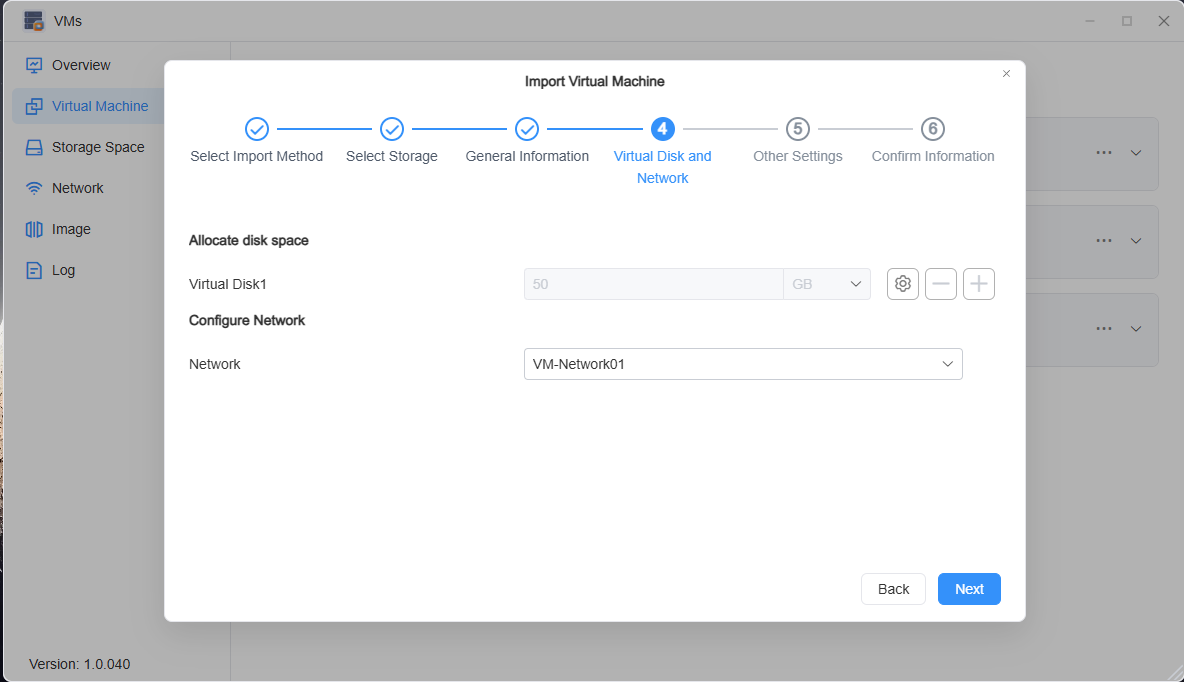
- Set up the virtual disk and virtual machine network.
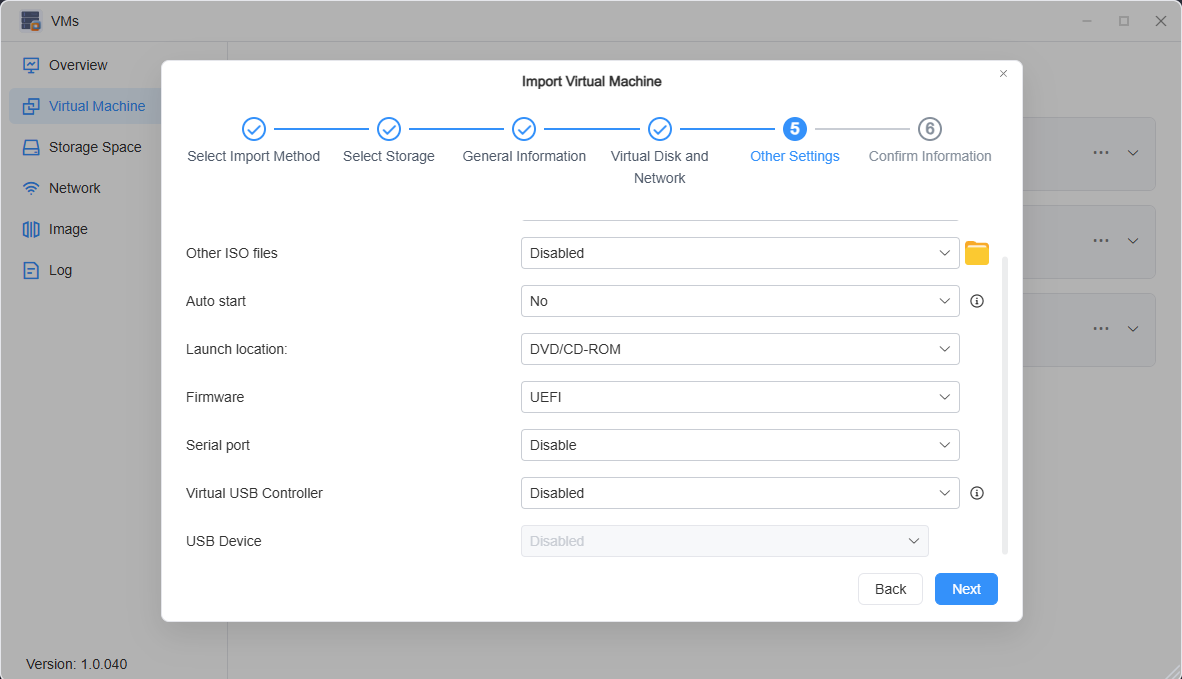
- Configure other settings, such as adding additional virtual machine image files and configuring virtualization hardware for the virtual machine.
- Confirm the information. After verifying that everything is correct, click "Confirm" to complete the virtual machine import. After the virtual machine image file is parsed, you can run the virtual machine.
Note
• If the imported virtual machine displays a black screen or fails to load properly when connecting via noVNC, please try modifying the firmware options.